 The instax Pal 2 is a compact, fun camera designed to take everywhere and capture and share spontaneous moments. Think parties, days out or simple trips, and it neatly complements Fujifilm’s instax printers too. It’s not meant to replace a more serious camera or even your phone - it’s supposed to be a fun alternative that earns its place in your pocket with its looks and operation. Good thing then that Fujifilm is a master at adopting and adapting controls that are simply enjoyable to turn and twist, while providing key feedback that’s absent from a phone or more basic cameras like the Kodak Charmera. Similarly it’s nice to have an optical viewfinder and I appreciate the screen’s position on the top for encouraging waist-level shooting. It all adds up to a very different experience to shooting with a phone, and that’s the point. The 100 shot limitation will infuriate anyone who tries to use it as a traditional digital camera, and like other instax digitals, don’t expect great image quality when examining the files either. The price also makes it less of a casual purchase, but I have to say I had a lot of fun shooting with it, especially once you stop trying to circumvent limitations and just use it how it was intended. Ultimately I found it a lot more enjoyable than taking photos with my phone even though the quality was nowhere near, and it’s something I’d be more likely to use regularly than a cheapo Kodak Charmera.
Fujifilm instax Pal 2 review
-
-
Written by Gordon Laing
The Fujfilm instax Pal 2 is a cute-looking compact digital camera with fun features inspired by vintage analogue cameras. And before you ask, like the original Pal before it, the Pal 2 does not include a built-in instant printer, but it will talk directly to one if you like.
Announced in September 2026 in two colours and costing around $170 or £150, it’s a World apart from the original Pal launched three years previously. Looking like a cross between Mike Wazowski and a beauty blender, the original tiny Pal blindly shot photos with an ultra-wide lens that were automatically transferred to your phone. It was purposely frivolous, encouraging a fun, spontaneous style of photography.
If you’re rolling your eyes, the Pal 2 may already be more to your liking, sporting both an optical viewfinder and a tiny screen for precise and predictable composition, and packed into a more traditional vintage-styled body mildly reminiscent of old 110 film cameras. You have a choice of taking photos in 10 or 1 Megapixel resolutions, but there’s no video. Speaking of video, my complete review and tests are in the video below, but if you prefer to read the written highlights, keep scrolling!
Fujifilm say the instax Pal 2 was designed in response to feedback on the original Pal, but perhaps in no coincidence one of its closest-looking rivals is the Kodak Charmera which went viral a year previously. At first glance they appear to offer a similar proposition, but the Pal 2 is larger, more sophisticated and substantially more expensive – indeed costing around five times more – and that makes it much less of a casual stocking-filler and more of a considered purchase. So let’s see what it can do and if it’s worth paying the extra.
Instax Pal 2: 92x37x42mm, 87g // Kodak Charmera: 58x25x20, 30g
Measuring 92x37x42mm and weighing 87g, the Pal 2 may be a very compact camera, but it’s considerably heftier than the Kodak Charmera. The Pal 2 will easily squeeze into most pockets, but isn’t designed to hang from a keychain like the Charmera. But the larger size makes the Pal 2 easier to handle as well as accommodating some nice controls lacking from the Charmera, so let’s have a look around it.
The front features a 28mm equivalent lens, a little wider than the 35 equivalent on the Charmera, with a classic instax selfie mirror to its left. Meanwhile to its right is a square window for the optical viewfinder for eye-level composition. To the upper right of the lens is an LED flash which, unlike the Charmera, can be forced on or off or left in auto in the menus.
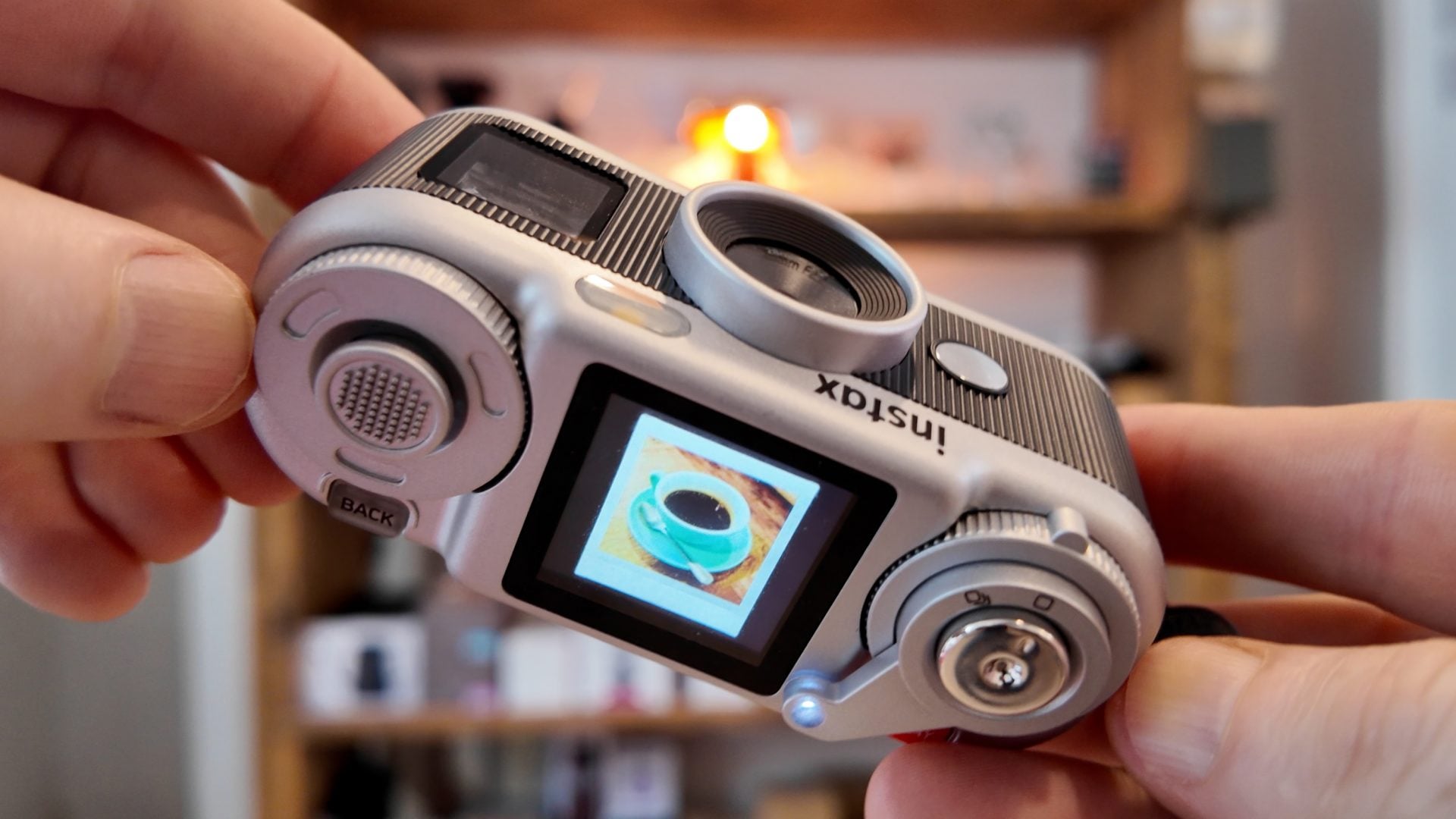
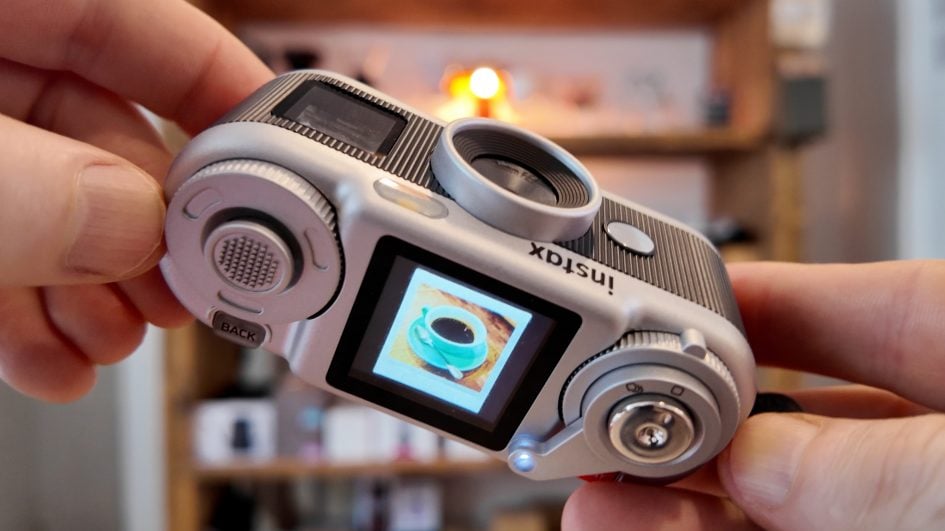
Turning to the top of the camera you’ll find a 1.3in square screen in the middle that’s used for composition, playback, menu navigation and choosing filter effects. I really like its position on the top as it gives you the option of waist-level shooting versus eye-level with the viewfinder, and it encourages a different style of shooting to a phone or other cameras with rear screens.
To its right is a two-tiered dial, with the shutter release button perched in the middle and the lower half powering the camera on and off; this has a positive click but the camera’s quite slow to start, taking about five seconds from cold. Above this is a lever reminiscent of a film winder with a hole at the end of the handle that lines-up with a power light. Wind this anti-clockwise to the right with a satisfying ratchet sound and you’ll cycle through the three instax print shapes of Mini, Square and Wide. Each crops the image to the selected shape while composing, so they’ll fit perfectly if you’re printing later.
Of course you could just enjoy them digitally in this shape without printing, where they’re shown in playback on the camera screen, or on your phone with a simulated digital border to mimic an instax print. Alternatively you can choose No Frame which just records uncropped and borderless images in the native 4:3 shape of the sensor, although if you’re accessing images directly from the memory or Micro SD card, you’ll find they’re all recorded in the native shape, accompanied by a file that instructs the app or printer how they should be cropped or displayed.
Push the lever clockwise with a solid click and you’ll put the camera into animation mode, with the lever neatly positioned over an on-screen icon. This mode captures ten images at 1 Megapixel resolution that are then assembled into a sequence a little like an animated GIF. These are captured in a slow burst as you hold the shutter button down. You can watch the animations in playback on-screen or when copied onto your phone.
Alternatively you can print one frame from the app which uploads the animation to Fujifilm’s servers, while overlaying a QR code on the print. Scanning the QR code will display the animation on your phone if you’d like to try it, although as before Fujifilm only keeps the files for a couple of years before deleting them and rendering that QR code redundant.
Moving to the left side is another dial which cycles through six pre-installed effects: Pure, Cool, Muted, Soft, Flare and Mono. Each has a title page with an example before half pressing the shutter fires-up the live image. If you prefer you can set the camera to go straight to live view and only show these examples as you turn the dial.
Eagle-eyed viewers may have noticed each of the effects had the word Modern below, referring to a parent collection or theme. Fujifilm has actually created five different themes for the camera, each with six related effects which you can browse on the app. You can then choose to swap the camera’s Modern theme with one of the others, or cherry pick a mix of your favourite six effects from all five themes. Either way, it refreshes the shooting experience the next time you take it out.
Inside the dial is a joystick with a push to click action. Pushing this once fires-up the menu system on the screen, allowing you to print, configure the LED flash, set a two or ten second self timer, apply +/-2EV of exposure compensation, toggle face detection, set the effect display mode or select the image quality, more about which in a moment.
Pushing the joystick right brings up the configuration options including the operation volume, print quality and date stamp. Meanwhile buttons below the left and right dials go back a level or enter playback respectively.
All in all, there’s plenty to twist, turn and push on the top panel, and I love this degree of physicality on the Pal 2. It really sets it apart not just from the Kodak Charmera with its virtually flat top, but also the phone photography experience. It’s just nice to turn and push these controls, and for the price they have nice clicky feedback.
Turning to the rear of the camera you’ll find the circular eyecup for the optical viewfinder. This has a circle in the middle of the frame, but no parallax lines, so for accurate framing especially when cropping for specific print shapes, it’s best to use the screen.
Then behind a large flap in the middle is a Micro SD card slot. When a card is inserted, images are recorded onto it rather than the internal memory, but don’t assume this will let you take more photos.
The Pal 2 is designed for regular connections with your phone and will actually stop taking photos when it reaches 100 shots – and bear in mind if you’re taking animations, each will use up to ten shots from this total. So once you reach 100 shots, the Pal 2 ideally wants to connect to your phone to transfer some or all your images, allowing you to continue shooting.
Note by default any images transferred to your phone are automatically deleted from the camera, whether you’re using internal memory or a Micro SD card. You can change that setting in the app, but remember if you already have 100 photos on the camera, you’ll still need to manually delete some or all of them before you can take any more.
Now since there’s already sufficient internal memory for 100 shots, you may wonder why you’d bother fitting a Micro SD card. Well I found two reasons: first is being able to simply pop it out and read it on another device, although do be aware the 100 shot counter will still be observed once you reinsert it, so you still need to transfer or delete images before you can use the camera again.
The second reason is consistently accessing the images in their original 10 Megapixel resolution, as in my time with the app so far, I could only access images in reduced 1 Megapixel versions regardless of the connection. Maybe there’s a setting I didn’t find, maybe not.
Under the camera you’ll find a tripod thread that’s useful for mounting on a stand like my Feisol TT-15 mini tripod here, but for simple selfies you could also use the supplied rubber accessory which points the camera up a little – and you can use the phone app to remote control and trigger the camera too.
Also notice that lever which uniquely pushes a USB C plug out the side of the camera – yep, that’s a plug not a port. This is designed to slot straight into a phone for quicker data transfer, although if yours has a thick case or a different port you can make the connection purely over Bluetooth.
Note Fujifilm warns you’ll only be able to transfer original quality images to the app when using USB, versus reduced quality over Bluetooth, but in my tests so far I could only access reduced quality versions when using the app with either type of connection.
While not an official solution, I found I could also directly connect the camera to a Mac’s USB port and use the Preview app to access and copy images in their original format, although again this doesn’t circumvent the 100 shot counter.
The USB plug is also used to charge the internal battery, and while you could in theory insert it directly into a charger, Fujifilm supplies the Pal 2 with a short extension cable so there’s no pressure on the plug with the camera dangling from it; you could also use this when connecting to a phone or other device if you prefer.
As mentioned, the camera uses an internal battery which in my tests was already running low as I reached the 100 shot limit, and this was with a brand new unit; maybe as the battery weakens over time, you’ll need a topup to even reach that limit.
Like some earlier instax cameras, there’s no door to access the battery and some regions would expect you to eventually dispose of the whole camera. But as we know, more enlightened regions, including the EU, force companies to provide a replacement option, so here’s the European manual explaining how to unscrew the bottom panel and fit a replacement to extend the camera’s life. If you’re fed up with e-waste, contact your government representative about it.
Ok now for imaging with the Pal 2 employing a 1/3in type CMOS sensor with 10 Megapixels. This makes it the highest resolution of the digital instax models to date with earlier ones generally capturing 5 Megapixel images. To be honest though, five is enough for social sharing or making instax prints.
Either way, it’s way more than the 1.6 Megapixels of the Kodak Charmera, although aware that some people might actually want that old low-res look, Fujifilm has also equipped the Pal 2 with a 1 Megapixel mode which I’ll show you in a moment. Unlike the Charmera though the Pal 2 does not have video capabilities, although the ten-frame animation mode can capture motion of sorts.
Meanwhile the lens delivers mild wide coverage equivalent to 28mm with a fixed f2.2 aperture and focusing between eight cm and infinity. Exposure is fully automatic and adjusted with a sensitivity range of 100-1600 ISO and shutter speeds between a ¼ and 8000th of a second, As noted before, you can adjust exposure compensation but nothing else.
So let’s have a look at the same shot taken in both quality modes, starting with the full 10 Megapixels which again I could only access when reading a Micro SD card or plugging the camera directly into a computer. Taking a closer look reveals quite an electronic look to the processing with high sharpening. You’ll also notice noise even at the lowest sensitivities. Put it this way, your phone will almost certainly deliver better looking images but cameras like the Pal 2 are about effects and the experience.
Comparing the lower resolution 1 Megapixel version, sure there’s more obvious artefacts around edges and there’s not as much fine detail, but having tested a lot of vintage cameras on my DinoBytes channel I’m not getting the same vibe here. At this point you might wonder why you just don’t get a real vintage digicam for the truly authentic look, but many now actually cost more than the Pal 2 with no guarantee if they break or any modern connectivity, so you have to think carefully about what you want.
Ok let’s have a closer look at the app, available for both iOS and Android devices and seen here running on my iPhone 16 Pro. The first step is pairing the camera over Bluetooth and if possible also making a physical connection over USB. You’ll then be prompted to transfer any images that are outstanding, and again remember the setting in the app to choose whether to delete the originals or not.
It took just under one minute to copy a full camera of 100 images using a direct USB connection, although note these were copied at a reduced 1 Megapixel resolution. At the time I made this review, I could only access the original 10 Megapixel versions by reading a Micro SD card or connecting the camera directly to a computer.
Within the app you can browse the images you’ve transferred, previewed with any frame or border selected at the time you took them. Animations are also previewed with motion, again like an animated GIF.
Tap a still image and you can apply a number of edits including reformatting it into any of the three instax print shapes with an optional digital border if desired. You could also edit an image taken with a border and remove it to access the full shape if desired. You can also crop to effectively zoom-in on an image or rotate it.
These can then be downloaded to your phone or shared directly to another app. Alternatively you can print, which simply shares the image with any of the instax link printer apps you already have installed, or any of the hybrid cameras including the mini LiPlay and both mini or Wide EVOs. You then subsequently manage the printing process within the app for that particular device. Remember you can also print directly from the camera, albeit without the editing options.
Animations are handled a little differently. Again these are previewed on-screen and can be downloaded or shared to other apps, but while you can also change the shape of a background, you can’t appear to change the instax format. So this animation captured in the Square format can’t be reformatted to mini or wide, other than just sticking it on a different background. Meanwhile printing an Animation overlays a QR code onto the first image, before uploading the animation to a Fujifilm server. Scanning the QR code links to this Animation, although like earlier instax models, this will be deleted after two years.
The app also lets you browse and apply the different themes, and the limit of only six at any time on the camera helps keep things fresh as you shoot. And finally as noted earlier, you can remote control the camera with the app, with a live preview that’s handy for framing-up group shots or any shot from a short distance.
Fujifilm instax Pal 2 verdict
The instax Pal 2 is a compact, fun camera designed to take everywhere and capture and share spontaneous moments. Think parties, days out or simple trips. It’s not meant to replace a more serious camera or even your phone – it’s supposed to be a fun alternative that earns its place in your pocket with its looks and operation.
Good thing then that Fujifilm is a master at adopting and adapting controls that are simply enjoyable to turn and twist. Sure the Pal 2 is almost entirely plastic, but the dials and ratchet lever still feel nice to operate and provide key visceral feedback that’s absent from a phone or more basic cameras like the Kodak Charmera. Similarly it’s nice to have an optical viewfinder and I appreciate the screen’s position on the top for encouraging waist-level shooting. It all adds up to a very different experience to shooting with a phone, and that’s the point.
The 100 shot limitation is likely to infuriate anyone who tries to use it as a traditional digital camera, and like other instax digitals, don’t expect great image quality when examining the files either. Whether transferred at the full 10 Megapixels or the reduced 1 Megapixel size, photos don’t look anywhere near as good as a half-decent phone. As before, the images are designed to showcase a number of fun filters before sharing online or being printed on a small instax device.
There’s that word fun again, and I can’t tell you how to have it or even know how much you’re willing to pay for it. You’ll look at cameras like these and either see straightaway how you’d enjoy using it, or that it has no place in your life. It’s easy to understand the success of the Kodak Charmera as its low price was a no-brainer for a lot of people, especially as a gift. But $170 or £150 for the Pal 2 is a more serious spend for most of us and less of a casual buy.
But I have to say I had a lot of fun shooting with it, especially once you stop trying to circumvent various limitations and just use it how it was intended. Ultimately I found it a lot more enjoyable than taking photos with my phone even though the quality was nowhere near, and it’s something I’d be more likely to use regularly than a cheapo Kodak Charmera.
And I applaud Fujifilm for continuing to release cameras like these alongside their more serious X and GFX models. Sure they don’t all resonate with every photographer, but they don’t need to, and how many other camera companies are actually trying to have fun with photography? I feel many have given up on this aspect and have become spec-monsters. Of course powerful cameras do have their place, but I’m happy to be reminded photography and cameras can be fun too.
Check prices or buy the instax Pal 2 in the USA from B&H or Adorama. Buy it in the UK from WEX, or in Europe at Calumet.de. Buy used gear from MPB. Sell your used gear to MPB. Or why not treat yourself to a copy of my In Camera book, an official Cameralabs T-shirt or mug, or treat me to a coffee! Thanks!