Canon PowerShot G9
-
-
Written by Gordon Laing
Intro
Canon PowerShot G9 Introduction
Canon’s PowerShot G9 was announced in August 2007 alongside the EOS 40D and a raft of new compacts. There was no G8 – Canon skipped direct to the G9 which makes it the successor the last year’s G7. It comes just 11 months later and like previous PowerShot G Series models, is targeted at higher-end enthusiasts and even pros looking for a serious compact digital camera.
The new PowerShot G9 takes the retro-styled body and 6x optically-stabilised lens of its predecessor and makes a number of improvements. Most obviously the resolution has increased from 10 to 12.1 Megapixels, the screen enlarged from 2.5 to 3in (along with a small boost in detail), and there’s now support for RAW recording.
Support for RAW can hardly be described a new feature though as it was present on earlier PowerShot G models, but unforgivably removed on the G7. Canon’s sensibly responded to a raft of complaints though and reinstated it here. As such the G9 is the only non-DSLR in Canon’s current range with RAW facilities.
Beyond these headline upgrades, the G9 also boasts time-lapse recording, support for wireless flash accessories and improved face detection thanks to its DiG!C III processor. Look very closely and you’ll additionally notice subtle differences in styling. But there’s no denying the PowerShot G9 is strongly based on its predecessor and is a case of gradual evolution.
Of course that’s no bad thing. The earlier PowerShot G7 may have disappointed G-Series veterans who missed its predecessor’s RAW recording, upper status screens and flip-out monitors, but it still remained one of the best compacts for enthusiasts with few if any direct rivals.
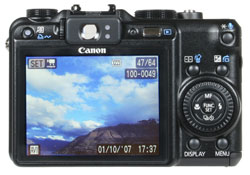 |
So the Power Shot G9 inherits a broad range of manual control, presented in a manner which is both sensible and familiar to DSLR owners. And while the G9 may not have the optical reach or grip of a super-zoom, its 6x lens is still quite powerful and crucially you’ll be able to squeeze the camera into bigger pockets. And standing proudly on its top surface you’ll find its killer feature: a fully-featured hotshoe which works with Canon’s Speedlite range – better still, the G9 improves on its predecessor here by offering in-camera control of models like the 580EX II, along with support for wireless flash units. That’s impressive considering we’re talking about a compact here, not a DSLR.
But while the launch RRP of the PowerShot G9 is lower than its predecessor, it remains uncomfortably close to that of budget DSLRs. Fans of earlier PowerShot G Series cameras will also realise while RAW recording has been reinstated, there’s still no upper status screen, f2.0 lens or flip-out monitor. It’s certainly interesting to note you can get the G9’s 12.1 Megapixel sensor and a flip-out monitor on Canon’s cheaper PowerShot A650 IS. Others will also argue while the G9’s 6x lens is decent quality, the 35-210mm equivalent range could do with starting a bit wider.
 |
So the big questions remain the same as its predecessor. Is the PowerShot G9 a league ahead of cheaper compacts and a genuine pocketable alternative to a budget DSLR? Or does it sit uncomfortably in Canon’s range being too pricey for a compact and insufficiently powerful for a DSLR? We’ll reveal all in our Canon PowerShot G9 review and as always to see the camera’s highlights, check out our G9 video tour. Note due to similarities with its predecessor, some sections of the following review are taken from our earlier G7 article.
Testing notes
Following our convention of using default factory and best quality JPEG settings to test cameras unless otherwise stated, the PowerShot G9 was set Large SuperFine quality, Auto White Balance, Evaluative Metering and with ‘My Colours’ switched off (the default setting for contrast, saturation and sharpening).